
Why MT4 Remains the Gold Standard for Forex Traders
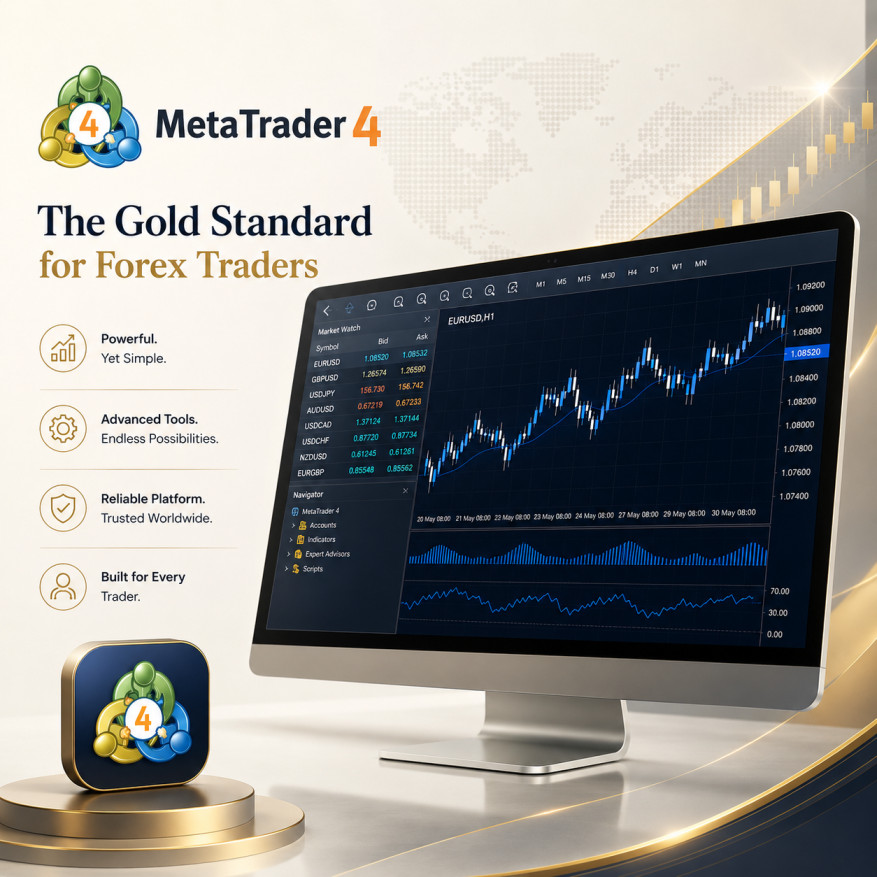
If you have spent any time in the forex world, you have almost certainly heard of MetaTrader 4 — commonly known as MT4. Launched by MetaQuotes back in 2005, this platform has quietly become the backbone of retail forex trading. Banks, individual traders, hedge funds, and everyone in between still rely on it every single day. That is not by accident.
MT4 is powerful enough for professional traders yet accessible enough for complete beginners. It combines real-time charting, a library of technical indicators, automated trading tools, and a clean interface that makes even complex strategies feel manageable. Whether you are scalping the EUR/USD at 3am or swing trading gold over several weeks, MT4 gives you everything you need without getting in your way.
In this guide, we are going to walk through every major feature of MT4 — from downloading and setting up the platform to executing trades, managing risk, and running automated strategies. By the time you finish reading, you will know exactly how to use MT4 confidently and effectively.
Getting Started: Downloading and Setting Up MT4
Getting MT4 up and running takes less than five minutes. Head to the official MetaQuotes website or, more conveniently, your broker's website — most major forex brokers offer a pre-configured version of MT4 that connects directly to their servers. Download the installer file, run it, and follow the on-screen steps. The platform is lightweight and installs quickly on both Windows and macOS (via Wine or a broker-provided version).

Once installed, open MT4 and go to File → Login to Trade Account. Enter the credentials your broker provided — your login number, password, and server name. If you are just exploring, open a demo account first. It is free, uses real market data, and carries zero risk.
Navigating the MT4 Interface
The MT4 interface is divided into four key areas you should know immediately:
- Market Watch Window — Live bid and ask prices for all available instruments. Right-click any symbol to open a chart instantly.
- Navigator Window — Your personal command centre. Access trading accounts, apply indicators, and launch Expert Advisors (EAs) from here.
- Chart Window — The main stage. All your price action, indicators, and drawing tools live here.
- Terminal Window — Located at the bottom, this shows open trades, trade history, account balance, and the news feed.
- Toolbars — Quick-access buttons for opening orders, zooming in on charts, and switching timeframes.
Pro Tip: Spend your first 30 minutes on a demo account just clicking around. The more familiar you are with where everything sits, the faster you will act under real market conditions. Hesitation costs pips.
Analysing the Markets: Charts, Indicators & Tools
Here is where MT4 truly earns its reputation. The platform's technical analysis toolkit is deep, flexible, and fast. Whether you rely on a single moving average or run a complex multi-indicator system, MT4 handles it without breaking a sweat.
1. Interactive Charts
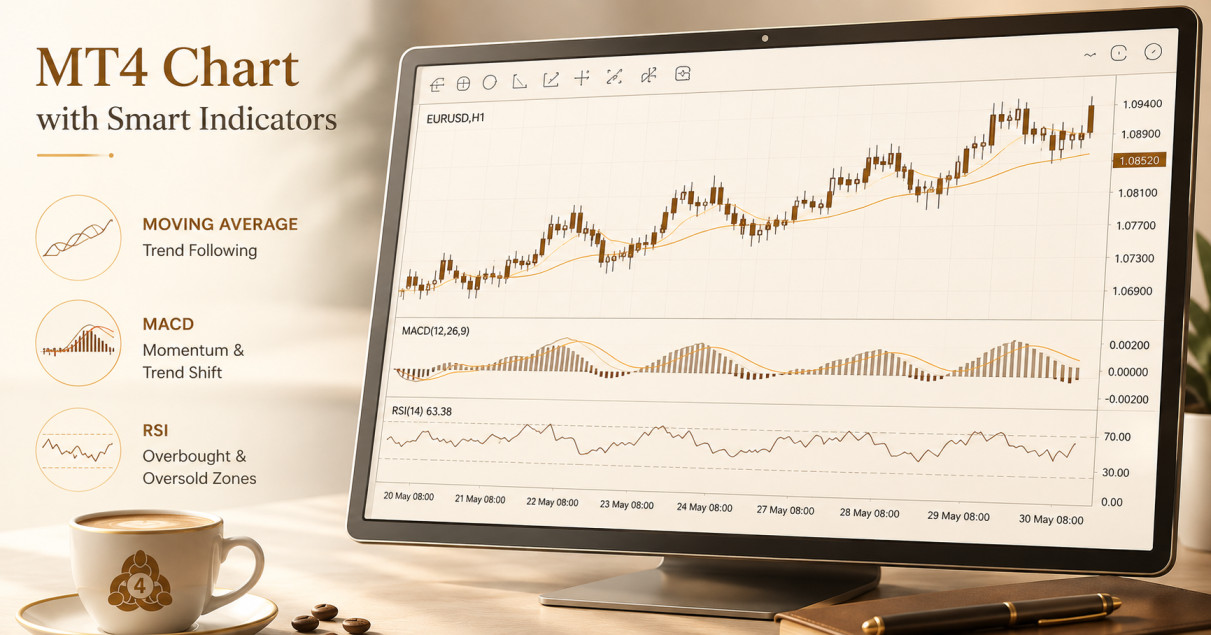
MT4 supports three chart types: line, bar, and the ever-popular candlestick. You can switch timeframes from 1-minute all the way to monthly with a single click. Want to see how the GBP/USD behaved around a major news event last week? Pull up the 15-minute chart and you are there in seconds. Charts are fully customisable — change colours, backgrounds, grid lines, and candle styles to suit your visual preference.
2. Technical Indicators
MT4 ships with over 30 built-in indicators spanning trend-following tools, oscillators, volumes, and Bill Williams indicators. Some of the most popular ones used by forex traders include:
- Moving Averages (MA) — Identify trend direction and dynamic support/resistance levels
- MACD — Spot momentum shifts and potential trend reversals
- RSI (Relative Strength Index) — Gauge overbought and oversold conditions
- Bollinger Bands — Measure volatility and identify breakout conditions
- Stochastic Oscillator — Time entries and exits on short-term price swings
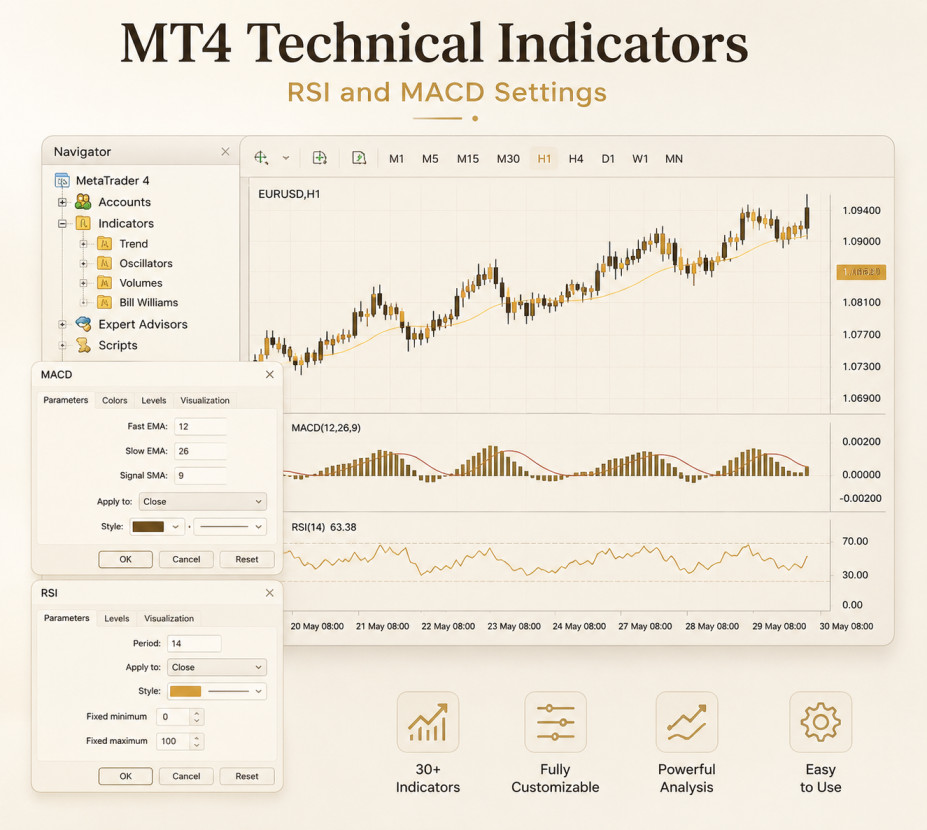
You can stack multiple indicators on the same chart or apply them in separate windows below the main chart. The Navigator panel makes it a simple drag-and-drop process — no technical knowledge required.
Custom and Community Indicators
Beyond the built-in tools, MT4 supports custom indicators built in its proprietary MQL4 language. Thousands of free and paid indicators are available through the MetaTrader Market and community forums. If you have a specific trading idea that no existing indicator covers, you can either code it yourself or hire a developer to build it for you.
3. Drawing Tools
Manual analysis is just as well-supported. MT4's drawing toolkit includes trend lines, horizontal lines, Fibonacci retracements, channels, rectangles, and text labels. Draw directly on your chart, lock objects in place, and delete them with a click. For traders who rely heavily on price action and structure analysis, this is where a lot of the real work happens.
Expert Advisors: Automating Your Trading Strategy
One of MT4's most powerful — and most discussed — features is its support for automated trading via Expert Advisors, commonly called EAs. An EA is essentially a program that monitors the market and places trades automatically based on rules you (or a developer) define. Think of it as a tireless trading assistant that never misses a signal, never feels fear, and never disobeys your rules.
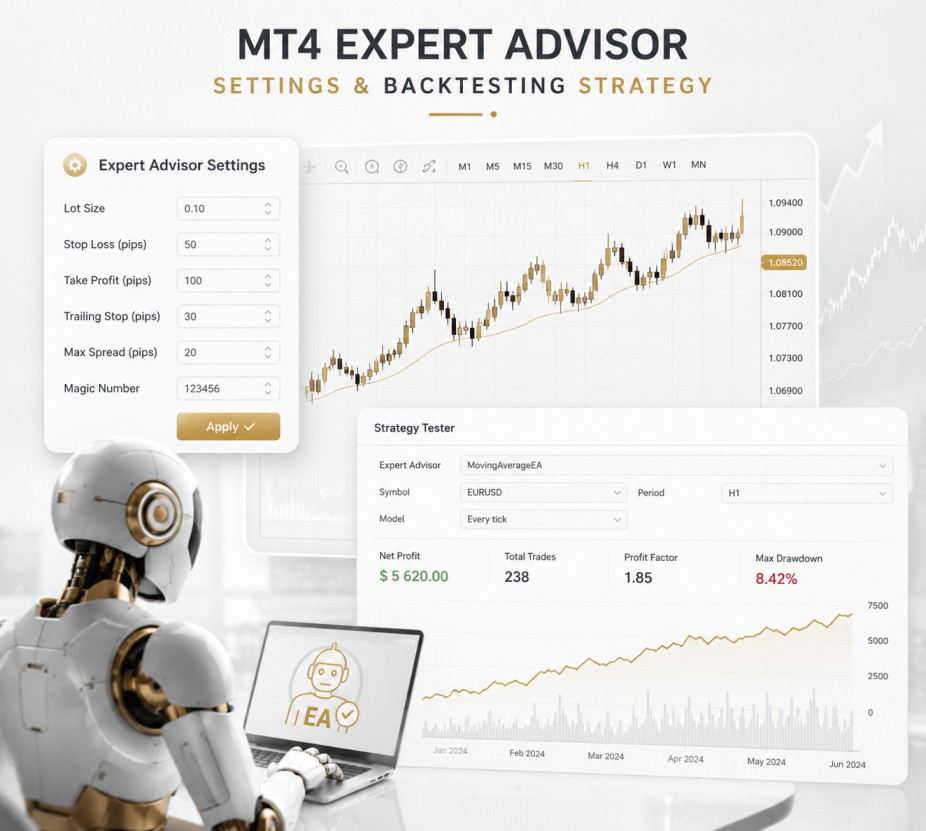
EAs can range from simple scripts that execute a single trade when a moving average crosses to complex multi-timeframe systems managing dozens of positions simultaneously. To run an EA, simply drag it from the Navigator window onto any chart. A settings panel appears where you can configure parameters — lot size, stop loss, take profit, and more.
Backtesting: Test Before You Risk
This is one feature that separates serious traders from casual ones. MT4 includes a built-in Strategy Tester that lets you run your EA against historical price data to see how it would have performed. You can test across different date ranges, currency pairs, and timeframes.
Actionable Tip: Always backtest any new EA across at least 3–5 years of data on multiple pairs before going live. Good backtesting results do not guarantee future profits, but poor backtesting results almost always predict future losses.
Backtesting results include a detailed report showing profit/loss, drawdown percentage, win rate, and trade-by-trade breakdown. Use this data to refine your strategy's parameters before deploying real capital. It is the closest thing to a risk-free dress rehearsal that trading offers.
Placing Trades: Market Orders, Pending Orders & More
When you are ready to trade, MT4 gives you multiple ways to enter the market — each serving a different purpose depending on your strategy and market conditions.
Market Execution — Instant Entry
The fastest way to enter a trade is via market execution. Simply right-click a chart or hit F9 to open the order ticket. Choose your instrument, set your lot size, and click Buy or Sell. Your trade executes at the current market price. This is ideal when you need to act on a signal immediately — for example, when price breaks a key level in real time.
Pending Orders — Trade On Your Terms
Pending orders allow you to instruct MT4 to enter a trade automatically when price reaches a specific level. MT4 supports four types:
- Buy Limit — Buy below the current price (expect price to dip then rise)
- Sell Limit — Sell above the current price (expect price to rise then fall)
- Buy Stop — Buy above the current price (breakout entry to the upside)
- Sell Stop — Sell below the current price (breakout entry to the downside)
Pending orders are invaluable for traders who cannot watch the screen all day. Set your levels during a quiet period, walk away, and let the market come to you.
Stop Loss and Take Profit — Protecting Your Capital
Every trade you place should have a Stop Loss. This is not optional — it is the line between disciplined trading and blowing your account. When you set a Stop Loss, MT4 will automatically close your trade if price moves against you by a certain amount, capping your loss. Take Profit does the opposite: it locks in gains by closing the trade when your target is reached.
You can set both levels when you open the trade or modify them later by double-clicking the trade line on your chart or right-clicking in the Terminal window.
Risk Management & Account Monitoring in MT4
Profitable trading is 60% strategy and 40% risk management. MT4 provides the tools — but discipline is your job. Here is how to use the platform's features to stay in control of your trading.
Account History — Your Personal Trade Journal
Navigate to the Terminal window and click the "Account History" tab. Every closed trade is listed there with entry price, exit price, duration, profit or loss, and swap charges. Export this as an HTML statement and review it weekly. Patterns in your losses are your greatest teachers — and MT4 surfaces them clearly.
Lot Sizing and Leverage Control
MT4 allows you to control your position size precisely. Many professional traders use position sizing formulas that risk no more than 1–2% of their account balance per trade. Once you know your Stop Loss in pips and your account currency, calculating the correct lot size ensures consistent risk regardless of which pair you are trading.
- Use Standard lots (100,000 units) for larger, well-funded accounts
- Use Mini lots (10,000 units) for medium account sizes and medium-risk strategies
- Use Micro lots (1,000 units) when learning the platform or testing a new strategy
Risk Rule: Never risk more than 2% of your total account equity on any single trade. This keeps a losing streak from wiping out your account before your edge has a chance to play out over many trades.
Frequently Asked Questions About MT4
Yes — MT4 is completely free to download and use. You can access it via your broker's website or the official MetaQuotes website. There are no monthly subscription fees. Your broker may charge spreads or commissions on trades, but the platform software itself costs nothing.
Absolutely. MetaTrader 4 has dedicated mobile apps for both iOS and Android. The mobile version includes live charts, the full order ticket, trade management, and account monitoring. It is not as feature-rich as the desktop version for analysis, but it is perfect for monitoring open positions and managing trades on the go.
MetaTrader 5 (MT5) is the successor to MT4, offering more order types, additional timeframes, a built-in economic calendar, and multi-asset trading including stocks and futures. However, MT4 remains more widely supported by forex brokers, has a larger library of custom indicators and EAs, and is still the preferred choice for the vast majority of retail forex traders.
Download the custom indicator file (it will have a .ex4 or .mq4 extension). Open MT4, go to File → Open Data Folder → MQL4 → Indicators, and paste the file there. Restart MT4 and the indicator will appear in your Navigator window under "Custom Indicators." Drag it onto any chart to apply it, and configure the settings as needed.
Yes, without question. A demo account runs on real market data with virtual money — so everything you experience is as realistic as live trading, except there is no financial risk. Spend at least 4–8 weeks on a demo account until you can navigate MT4 confidently, execute trades without hesitation, and manage positions calmly before considering a live funded account.
Ready to Start Trading Smarter?
MT4 is your platform. Now you need the signals and analysis that make it work for you. Join thousands of forex traders already using fxTsignals.com to stay ahead of the market every single day.